Toshiba Portege 4000 Notebook Review
Author:
Date: 15.02.2002 |
|
Main characteristics
- Intel Pentium III-M 750 MHz supporting SpeedStep;
- 128 MB memory in SO-DIMM, up to 1024 MB in two expansion slots;
- 2.5" 20 GB hard drive;
- Integrated Ethernet 10/100 Mbit and WirelessLAN 802.11b network adapter;
- Integrated Bluetooth controller;
- Built-in removable DVD-ROM drive;
- PC Card slot for two Type II or one Type III card;
- Built-in SecureDigital card reader;
- Trident CyberBlade XP graphics system;
- TFT LCD, 12.1", 1024x768, upward interpolation;
- Full-size keyboard with 86 buttons;
- AccuPoint II for mouse handling;
- Dimensions: 270x248x31/34 mm;
- Weight with DVD-ROM: 1.9 kg, with the bay's cover: 1.7 kg
Bundled software:
- Windows 98 (with a lot of Toshiba's features);
- Software DVD player - WinDVD;
- Microsoft Works office packet
The Portege 4000 looks very attractive for people who need mobility most of all. The mobile processor Pentium III-M clocked at 750 MHz (500 MHz in the SpeedStep mode) hidden inside the notebook is enough for comfort operation with most modern applications, be it Microsoft Office XP or Adobe Photoshop 6.0.
Communication
A built-in Bluetooth controller is an excellent add-on for a pressman as it allows exchanging data with PDAs, cell phones, printers and other equipment without any cables. Using the bluetooth head set it's also possible to send voice commands to PC, but it's not so necessary.
The Ethernet 10/100 Mbit controller helps this monster work in usual networks; its connector is located on the back, next to the modem.
The integrated WirelessLAN 802.11b controller allows browsing a wireless network; it's made in the form of a MiniPCI card.
The communication capabilities are advanced. You are offered everything you can think of; besides, both Bluetooth and WirelessLAN controllers are already built in, that is why you won't have to buy expansion cards, occupy the PC Card slot etc. Besides, the software is already installed.
Mobile Internet via GPRS with Bluetooth

Internet connection via GPRS using Bluetooth. Portege 4000 and Nokia 6310
In the tests we used the Portege 4000 together with the Nokia 6310 cell phone supporting GPRS in the BeeLine network. Although the combination was viable, some problems were to be dealt with. The bluetooth which is meant to simplify equipment is not easy to adjust.

Bluetooth modem in the Portege 4000
In the Bluetooth manager the services of the Nokia 6310 are not displayed at default. To connect the phone with the notebook it's necessary to Refresh Services and then connect the Dial-up networking service via required virtual port. If ports are not set, you must do it manually. Before all these steps you must install the drivers and software from the CD coming with the phone or download the Nokia PC Suite from the manufacturer's site.

Nokia 6310 requests pairing with the Portege 4000
One of peculiarities of the tandem of the Nokia 6310 and Portege 4000 is that it's impossible to reconnect after the GPRS connection breaks because of hardware errors. The problem can be solved only by rebooting the system or switching off/on the hibernate mode. I hope it will be corrected in the new firmware versions of the Nokia.
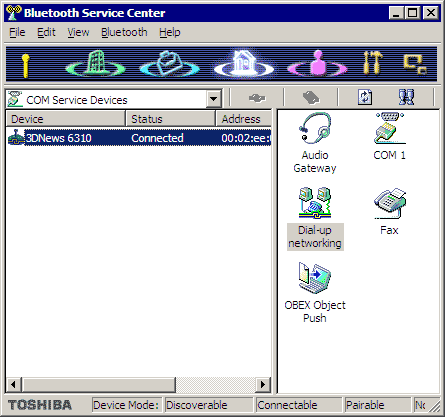
Bluetooth manager (software from the Portege 4000's suite)
A couple of words on the Internet settings with bluetooth. The CD coming with the Nokia 6310 has PC Suite 4.5 and a modem's driver. The former is useless for operation of the modem, and the latter works only with an IR port and wired connection. To install the phone you have to add manually the "Nokia 6310 (Bluetooth)" device from the list of modems and assign a required port manually as well.
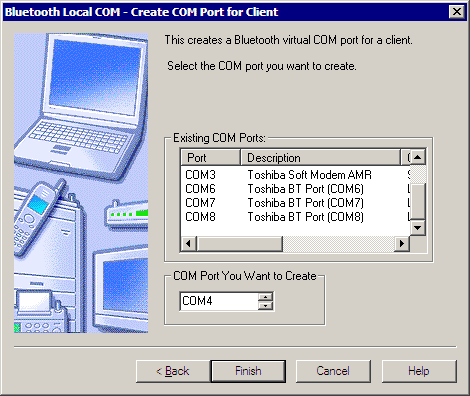
Creation of a new virtual COM port for Bluetooth
Before that the port must be created in the Bluetooth Local COM utility which is a part of the Toshiba Bluetooth Stack.
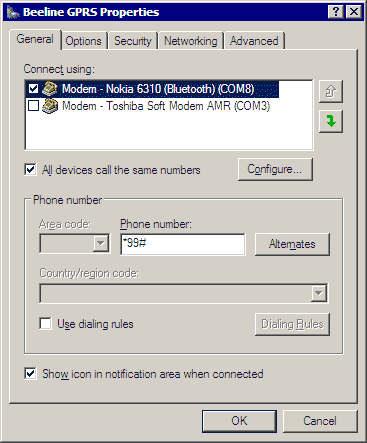
GPRS settings for the Beeline network
Here are the steps to adjust GPRS in the Beeline network:
- Assign an access point in the phone (to your liking, for example, Beeline Internet)
- Set an access point of the GPRS connection - internet.beeline.ru
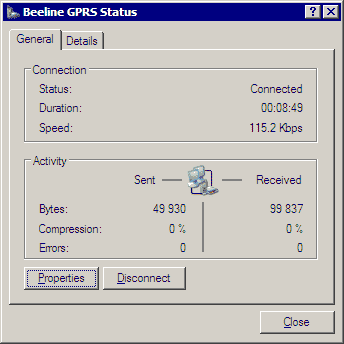
After that you must make the Internet settings on the notebook. Create a new connection with the "Nokia 6310 (Bluetooth)" used as a modem, and the number *99# (without inverted commas). In the modem's settings write the initialization line AT+CGDCONT=1,"IP","internet.beeline.ru", and DNS and . In the connection settings you must disable compression of IP headings and enable a standard gateway for a remote network. After that establish connection between the phone and the notebook and call the provider via a respective port.
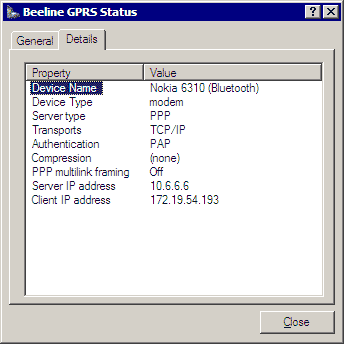
Wireless LAN
Together with the Bluetooth, the computer is equipped with a built-in controller for operation in 802.11b networks. There is a special utility that switches between BT and WLAN. Operation with the WLAN is identical to that with Ethernet or PC Card WLAN adapters. Make the respective network settings, and the notebook will grab a wireless network easily. Such controller is a big advantage for a modern notebook. It allows for a convenient LAN access without being limited by the length of cables. The connection speed varies from 2 to 11 Mbit depending on conditions. Soon we will carry out some tests and make a review on an integrated WLAN.
 |
Content: |
 |
|
|
Top Stories: |
|
 |
|
MoBo:
|
|
|
|
VGA Card:
|
|
|
|
CPU & Memory:
|
|
|